A bit specific: using Drafts to log what I’ve done

I do a monthly report about what I’ve done – last year for a project called Room 204, this year for you, both years really for me – and it’s always been a bit easy because I make proper notes as I go. Except I forgot to do that in May. For the entire month, I forgot. Not once did it enter my head. Must’ve been a quiet month.

But these things really do help me so I didn’t want to forget again. If that sounds obvious, this will sound more obvious: I decided to use my iPhone to help me.

This is going to be really specific but please treat it as an idea of the type of things you can do rather than a recipe for exactly how I think you should do it. Also, please treat it as being infinitely faster to do than it is to describe.

This is what I do when I’ve done something I want to note:
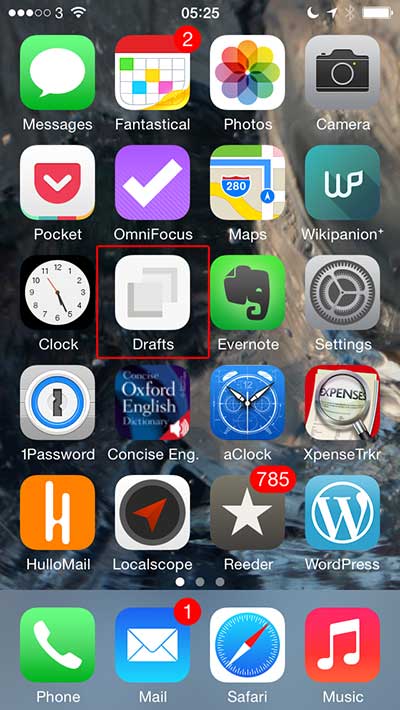
homescreen_400

Tap on Drafts on my iPhone

There’s rarely a minute my iPhone isn’t with me so whatever I’m doing, whatever I’ve just finished, I can easily tap on the Drafts app I keep on the home screen.

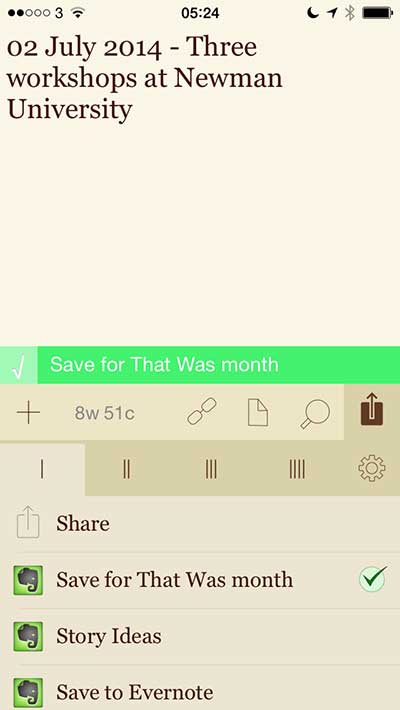
The thing with Drafts is that when it pops open, you start writing. (See second shot down there on the right.) Think later about where that text will go – is it an email, an iMessage, an Evernote entry? – just type for now. Plus I use TextExpander which is yet another app but it works with and within Drafts so I just type the letters XTD (TD for Today, X for just in case I ever need to write a real word beginning with TD) and the date appears.
Drafts_400

Note written and Drafts has sent it

It’s the date plus a dash and a space. After that, I type as quickly as I can and then tap the Share button. What you’re seeing here is the end result: I’ve written my note about a thing I’ve done today (or am about to do, actually), then I’ve tapped on Share. Tapped on “Save for That Was Month” and Drafts has done it. It has sent that text to Evernote. It’s left up here so that I can choose to send it somewhere else but instead I just put it away. Next time I open Drafts, I’ve got a blank screen ready for anything else.

That’s it.

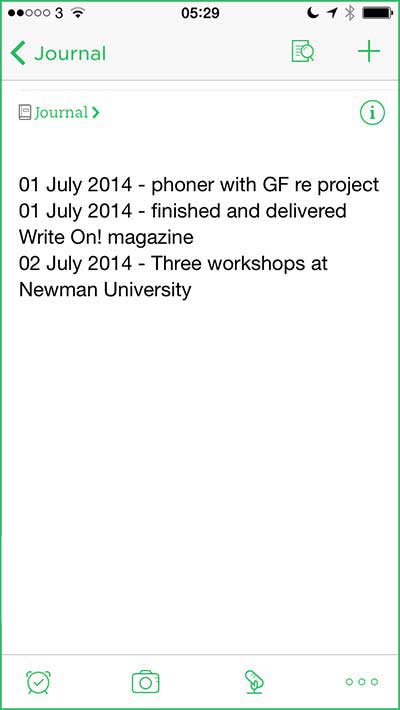
Except look at the shot below: that’s a grab from Evernote on my iPhone and you can see it shows that same text I just wrote in Drafts.
evernote_400b
Drafts has sent that text to the end of a note. So I have a That Was Month note in Evernote and Drafts just keeps adding to the end of it. In some ways it’s even more satisfying than my old manual notes because you don’t think about it, you don’t see any of it but the latest, until you go in to check and there are all these things entered.

I should explain that you have to set up Drafts to do this. I don’t find that as easy as some people do but you can see I’ve done it a few times: as well as this That Was Month business, I have a Story Ideas option that does much the same thing. I think of something I can use in a script or a book, write it down, tap Story Ideas and it’s off into an Evernote note.

And I have a general Save to Evernote which, actually, I’ve never used. There are other options below it such as Send to OmniFocus or Email or whatever. A lot of those come with Drafts, the others I’ve gone through setting up what I want. Telling Drafts I want to send text to this particular app or service, to add it as a new note or append to a particular old one, that kind of thing.

How long did that take you to read? Divide it by oodles and that’s how quick it is to use this thing. Which, frankly, means I use it. Did I mention that I have Drafts on my iPad too? So if I’m working on that, wallop, same thing. I don’t believe there’s a Drafts for Mac and maybe I wouldn’t buy it if there were: it would seem daft using it on a Mac when I have Word and Pages already.

So you know, this is what all this costs and where to get it. Everything but the iPhone, that’s up to you:

Drafts for iPhone: £2.49 UK, $3.99 US

Drafts for iPad: £2.99 UK, $4.99 US

Evernote for iPhone: free

Evernote for iPad: free

TextExpander for iOS: £2.99 UK, $4.99 US

Why I Can’t Delete a Digital Moment I Don’t Even Remember

There isn’t anything productive about this, perhaps it’s even the opposite of that. But it fascinated me: writer Jessica Miller very simply and starkly conveys what it’s like when you’re dumped yet she’s doing so in order to examine something more. It’s about memory and perception and technology and ourselves – and it’s about a 34-second audio recording that she includes in her piece:

What you’re hearing might not sound like much, but for me, listening to this clip transports me to a place with weight and dimension and color. It’s mostly me trying to get my microphone-shy boyfriend to talk. To tell me what he feels in this moment when the relationship is new and everything seems right and beautiful. He’s laughing at me because I’m being ridiculous, although he was always a man of few, well-chosen words. And then the kiss. He probably kisses me to get me to stop trying to make him talk. I guess it worked, because that’s where the recording cuts off. But it’s a sound so sweet, and so genuine. In an instant, I smell saltwater, grass, and his shampoo. I feel skin and the late summer air and the feeling of not being afraid to be completely myself in front of someone I care about.

But the thing is, I have absolutely no memory of this even happening.

Why I Can’t Delete a Digital Moment I Don’t Even Remember – Jessica Miller, The Atlantic (29 June 2014)

Now, for some reason I can’t hear her embedded SoundCloud audio track. But I’m okay with that: it’s her story, what she thinks next and now my imagination of what that recording is that engrossed me.

The brute-force way to motivate yourself

Regular productivity writer Eric Barker has a piece in Time magazine about what he calls the mistake every Productivity system makes:

Productivity systems rarely take emotions into account. And feelings are a fundamental and unavoidable part of why humans do what they do.

We can’t ignore our emotions. Because of the way our brains are structured, when thought and feelings compete, feelings almost always win.

Riffing on a book called Change by Chip and Dan Heath (UK edition, US edition), Barker proposes we think like mad when we’re planning what we have to do but then we do it by feel and specifically by using three steps to “rile up those emotions and get things done”.

The three – detailed in the full piece – are about rewords and peer pressure but my favourite is:

Having trouble finding a reward awesome enough to get you off your butt? Try a “commitment device” instead:

Give your friend $100. If you get a task done by 5PM, you get your $100 back. If you don’t complete it, you lose the $100.

Your to-do list just got very emotional.

That’s broadly the same principle that the website Go Fucking Do It works on (official website, news story on The Blank Screen)

This is how it should be: a Safari Extension I’ll use hourly

Not only will I use it hourly but I want to use it hourly now. The quick news: 1Password will use Extensions so that within Safari, you can get it to enter your username and password.

The slightly less quick news with more detail and enthusiasm… In case you haven’t come across it yet, 1Password is one of those apps that stores your passwords for you. Fine. It also creates ones like Wel6cAct9iB9Bit (that really is one it created, I just got it to do that). It creates these strong passwords and then saves them for you so that you don’t have to remember. You just have to remember the one password you need to get into 1Password. It works on iPhone, iPad, Android, Mac, PC, Windows, all sorts.

The phone and tablet versions come with their own web browser too. So if I’m organised, I can go into my 1Password app, tap on the name of my bank and that browser will zoom off to their site. Goes to the site, enters my username and some of my security details, then it even presses return. Only with my bank do I stop there. With other things I log into like TheTrainLine.com, it does the lot. One tap takes me to the site and then into the site. Another single tap and 1Password has entered all my credit card details for me.

Except I’m often not that organised. Very often, I will go a site in the regular iPhone Safari web browser and after a lot of fiddling like picking train times, I will reach the login or credit card screen and wish I’d remembered to do this in 1Password. Usually, I nip over to the 1Password app, copy the detail I need and go paste it into Safari. But just occasionally, I’ve moved over to 1Password and redone the whole job just to save that schlepping about.

Not any more. Behind the scenes it’s going to be using Touch ID and Safari Extensions but no matter: in future, when I’ve gone to a site in the ordinary Safari browser, I will still be able to use 1Password to enter my details.

This is how it is on the Mac and PC: wherever I am, I can whack a login detail or an over-used credit card in with a tap or two. This is how it will be on iPhones and iPads.

The company isn’t saying when it will happen but there is a limited beta test going on now and it all requires the forthcoming iOS 8. So you can bet that when the next iPhones come out around September, so will the new 1Password. No idea yet whether it will be a paid upgrade or a freebie but whichever, I’m having it. (Though it must be said, as great as 1Password is in every other way I know, upgrading to a major new version is agony.)

Here’s where you can learn more of the latest official release of 1Password and here’s a shaky video of the beta in action:

Exploit twitter for searches as well as nattering

I have a hard time separating twitter from my memory of it as a great place for midnight nattering. It’s a couple of years since it was that for me and my sense is that the feel of the place has changed. It’s definitely added more tools for finding news and information, I don’t know if that’s why it’s not my favourite spot at the bar any more.

But if it’s a good tool, let’s use it. First, scriptwriter and novelist Jason Arnopp has some key suggestions in his Five Things You May Not Know About Twitter:

1) HOW TO NARROW YOUR AUDIENCE
If you start a tweet with a username, then only people who follow you both will see it. I still see relatively seasoned Twitter users do this.

For instance, if I tweet the following…

@johnhiggs’ book on The KLF is mind-blowing – read it now!

… then only people who follow both me and @johnhiggs will see it. Which is a waste.

In case this confuses you, think of it in terms of tweeting directly at @johnhiggs, rather than tweeting about him. In the former case, it’s generally well known that only people who follow you both can see the tweet. But when you’re tweeting about someone, it seems like a whole other situation. To Twitter, it isn’t. That tends to be why you often see tweets starting with a full-stop, followed by a username – it starts the tweet with a buffer before the username, so Twitter doesn’t misunderstand and shows all your followers the tweet, just like you want it to, you attention-hungry, power-crazed MONSTER.

Incidentally, that full-stop isn’t some kind of specific code – it’s just the most-used buffer symbol. You could start with a ‘&’ or a ‘$’, but it might well look more obtrusive.

Five Things You May Not Know About Twitter – Jason Arnopp, INT. JASON ARNOPP’S MIND – DAY/NIGHT (27 June 2014)

The full piece has four more like that.

But now Lifehacker steps up with an article that’s like an old Open University maths show: you start off thinking this is easy, this is obvious, everyone knows th – pardon? This was the example of a twitter search that gave me pause, made me do a double take and is the reason I’m telling you about it:

Operator: near:NYC within:15mi | Finds tweets: sent within 15 miles of “NYC.”

So, you type in “near:NYC within:15mi” and you really do get tweets sent by people who were within 15 miles of Manhattan when they tweeted. The trouble is, you wouldn’t know that just from reading the results. Not now, anyway. If something was happening in New York City, this would zoom you in on it.

And the rest of Lifehacker’s examples are equally specific, equally potentially useful. Do read Search Twitter More Efficiently with These Search Operators by Patrick Allen for more.

Bugger. Got to buy this.

I bought an iBook called Paperless by David Sparks some time last year – wait, this is iBooks, this is the 21st Century, I can tell you in a flash… I bought it on 10 January 2013. It’s a very good read, it changed how I do a lot of things in my work, all’s good.

Then the same fella released a book about Email and I thought nah, I know from email. Then caught some of his MacPowerUsers podcast about the topic and thought, well, okay, possibly I don’t know quite as much as I thought. So on 15 November 2013 I bought the MacSparky Field Guide to Email

But that’s it. No more. What can this fella cover that I’d need?

Cue this morning and this announcement:

I’m pleased to announce the newest MacSparky Field Guide, Presentations. Most presentations are terrible. That, however, does not need to be the case for your presentations. This book explains how to create your own exceptional presentation. This Presentations Field Guide explains how to plan a presentation that will connect with your audience, the technical wizardry to create a stunning presentation, and walks you through presentation day to make sure it goes off without a hitch.

New MacSparky Field Guide: Presentations – David Sparks, MacSparky (30 June 2014)

I do a lot of presentations now. I have no choice. I’ve got to buy this. I would’ve bought it immediately and now be telling you what I think of it, but it’s not out yet. You can pre-order it for £5.99 UK or $9.99 US and it will ship on 21 July 2014. While we wait, here’s a short video trailer for it:

Five personal rules by Swiss Miss

I’ve long been reading the work of designer Swiss Miss, aka Tina Roth Eisenberg. She’s clever and she has taste and I did not realise until this talk that she is also insane. Admirably so.

This is how – and why – she started a new business the day she gave birth to her daughter. Then she decided she didn’t like having clients, so she stopped.

Turn CDs into LPs – like, a bit like vinyl, like, really

Vinyl records store music in long grooves that a needle bumps its way through. CDs store music in light pits that convey on and off, 0 and 1 to a laser. But now Londoner Aleksander Kolkowski is taking CDs and cutting grooves into them. After he’s done his doings, you can play music off the CD – on a vinyl record player, never again a CD drive.

Not for all that long: this reborn CD doesn’t hold enough music to include a three-minute pop song.

It’s transforming a disposable media storage device made for cloned copying into a one-of-a-kind cult object. In a way, it’s very tongue in cheek. There’s a lot of fetishism about vinyl, but I see this as quite throw-away, really. I do it for free. People bring a CD and I give them one in return. On a few occasions people have asked me to go into commercial production, but that’s not really my intention.

Aleksander Kolkowski speaking to The Atlantic (30 June 2014)

Do read the full article from The Atlantic as it’s got a lot to say about his artistry, his physical technique and about the state of vinyl collection.

Be cautious of using beta software – including Evernote

While the marketing and commercial side of the Evernote company has just brought various goods and products to the UK, the software side has been making big steps. But I’d still wait before you download the latest beta of Evernote for Macintosh.

Well, I say that but I didn’t wait. I’m running that latest beta on my MacBook Pro and it isn’t working. I suspect that’s more to do with how my MacBook is squeaking along with only the tiniest amount of disk space. Dropbox has folded its arms at me, but Evernote keeps crashing.

So I’d like to caution you about trying it out: I have done the sensible thing and only put this new version on one of my machines. It’s only un-sensible because this is the machine I’m working from today.

I would also like to tell you what’s new about it but I have yet to get beyond the crashing so I have to settle for showing you Evernote’s own list:

Here’s a list of everything that’s new and improved in this release:

Speed

Sync is more than 3x faster. Users with lots of Shared Notebooks and Evernote Business users will see the biggest improvements.
New notes sync instantly so they’re immediately accessible on your other devices.
Share notes without waiting for a sync to complete.
Launch and quit times have been reduced dramatically.
New keyboard shortcuts have been added to jump to the note list for easy navigation (CMD + |) and you can now tab between the search field, the note list, current note title and note body.
Energy consumption when the app is idle and in-use has been significantly reduced.

New Features

Tables can now be re-sized, and have configurable background colors and border styles.
Images can be re-sized right in the note editor. Just click an image and drag the handle in the bottom right corner.
Search results are now ordered by relevance.
Faster notebook selector at the top of the note list remembers your recently used notebooks.
Redesigned checkboxes in the note editor are easier to click.
Evernote will now stay logged in by default.
Stability Improvements

You can see why I downloaded it. And why I am keen for it to start working. Get it here.

Evernote Market reaches Europe

The Evernote company has just announced it will now ship to addresses in Europe. What it will ship is a collection of bags and clothing that are fine but also some hardware that is rather good. In particular, there is this:

evernote-scansnap-e1380217395237

That’s an Evernote edition of a ScanSnap scanner of which the company says:

The ScanSnap Evernote Edition, a collaboration between Evernote and Fujitsu, is not only the first of its kind – it’s the best in its class. You can put nearly anything in it, push one button, and with lightning speed it scans, senses, and autofiles your photos, receipts, business cards, and documents into your designated Evernote notebooks. Before you can walk away for a cup of coffee, you’ll get a simple notification to let you know Evernote has done your filing for you.

Except, you pay a lot for the Evernote colour and logo. I mean, a lot. This model costs £475 through Evernote Market but is functionally equivalent to the ScanSnap iX500 which you can currently get from Amazon UK for £318. In the US, the Evernote edition is $495 and the iX500 equivalent is $424 from Amazon USA.

I started telling you this because I thought it was good that Evernote Market was expanding outside the USA but now I’m just going to stick to Amazon. Still, take a look at Evernote’s description of the scanner as it’s good – and the market has other products.